
How to Use Dual SIM with eSIM: Keep Your Number While Traveling (2026)
Step-by-step guide to using dual SIM with eSIM for international travel. Explains how to keep your home number for calls and SMS while using a travel eSIM for cheap data. Covers setup for iPhone and Android, common myths, and troubleshooting.
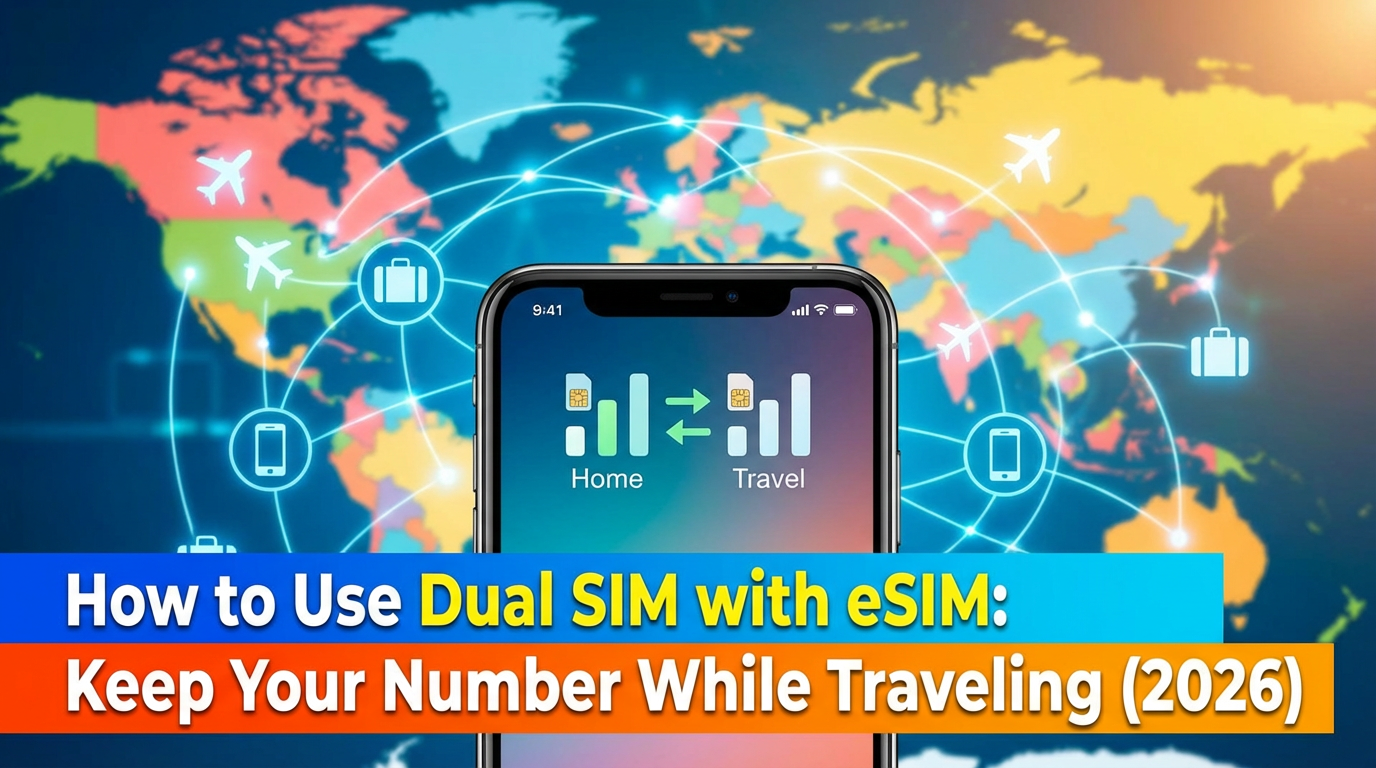
One of the biggest fears about using a travel eSIM: "Will I lose my phone number?" The answer is no — and dual SIM is how. This guide shows you exactly how to run your home number and a travel data plan on the same phone.
What Is Dual SIM and Why Travelers Love It
Dual SIM means your phone runs two SIM profiles at the same time:
- Line 1 (your home SIM): Keeps your phone number active for calls, SMS, and bank OTPs
- Line 2 (travel eSIM): Provides cheap local data in your destination country
You don't need to choose between staying reachable and having affordable data. You get both.
How It Works (The Simple Version)
Your Phone
├── Physical SIM (home carrier) → Calls, SMS, OTPs
└── eSIM (travel data) → Internet, Maps, Apps, WhatsApp
Your phone uses the home SIM for voice and the eSIM for data simultaneously. No switching, no swapping cards.
Setup Guide: iPhone
Step 1: Install Your Travel eSIM
- Settings → Cellular → Add eSIM
- Scan the QR code from your eSIM provider
- Label it something clear like "Japan Data" or "Travel"
Step 2: Configure Your Lines
- Settings → Cellular → you'll see both lines listed
- Default Voice Line: Select your home SIM (for calls)
- Cellular Data: Select your travel eSIM (for internet)
- iMessage & FaceTime: Select your home SIM (to keep your number)
Step 3: Enable Data Roaming on the eSIM
- Settings → Cellular → tap your travel eSIM
- Turn ON "Data Roaming"
- Turn OFF "Data Roaming" on your home SIM (to avoid charges)
Step 4: Enable WiFi Calling (Optional but Recommended)
- Settings → Phone → WiFi Calling → ON for your home SIM
- This lets you receive calls on your home number over the eSIM's data connection
Setup Guide: Android (Samsung / Pixel)
Step 1: Install Your Travel eSIM
- Settings → Connections → SIM Manager (Samsung) or Network & Internet → SIMs (Pixel)
- Add eSIM → Scan QR code
- Name it "Travel Data"
Step 2: Configure Your Lines
- Settings → Connections → SIM Manager
- Calls: Select your home SIM
- SMS: Select your home SIM
- Mobile data: Select your travel eSIM
Step 3: Enable Roaming
- Tap your travel eSIM → turn ON "Data Roaming"
- Tap your home SIM → turn OFF "Data Roaming"
Common Myths About Dual SIM
Myth: "Both SIMs use data at the same time"
Reality: Only one SIM handles data at a time. You choose which one. The other SIM stays active for calls/SMS only.
Myth: "I need to delete my home eSIM to add a travel eSIM"
Reality: Modern iPhones store 8-10 eSIM profiles. You can have multiple installed and just activate/deactivate as needed.
Myth: "Dual SIM drains battery faster"
Reality: The impact is minimal. Having two active SIM profiles uses slightly more power, but you won't notice a meaningful difference in daily use.
Myth: "I can't receive calls while using the eSIM for data"
Reality: You can. Your home SIM stays active for incoming calls even while the eSIM handles data. The phone manages both simultaneously.
What About Bank OTPs and Two-Factor Authentication?
This is the real reason to keep your home SIM active. Many banks and services send verification codes via SMS to your registered number. If you swap to a local SIM and lose your home number, you can't:
- Log into banking apps
- Verify credit card transactions
- Reset passwords
- Receive security alerts
With dual SIM, your home number stays active and receives all SMS normally.
Which Phones Support Dual SIM + eSIM?
iPhone
- iPhone XS, XR and newer: 1 physical SIM + 1 eSIM
- iPhone 13 and newer: 1 physical SIM + 2 eSIMs (or dual eSIM without physical SIM)
- iPhone 14 US models: eSIM only (2 eSIM slots, no physical SIM)
- iPhone 15/16: Same as 14 for US models
Samsung
- Galaxy S20 and newer: 1 physical SIM + 1 eSIM
- Galaxy Z Flip/Fold series: 1 physical SIM + 1 eSIM
Google Pixel
- Pixel 3 and newer: 1 physical SIM + 1 eSIM
- Pixel 7 and newer: Dual eSIM support
Real-World Scenario: 7-Day Japan Trip
Here's exactly how a dual SIM setup works in practice:
Before departure (at home):
- Buy a Japan eSIM plan ($8.93 for 10GB/30 days)
- Install it via QR code on home WiFi
- Label it "Japan Data"
- Don't activate it yet
At the airport (before boarding):
- Verify your home SIM's WiFi Calling is enabled
- Confirm the eSIM is installed but not yet active
After landing in Japan:
- Go to Settings → Cellular → tap "Japan Data" eSIM → turn ON
- Enable Data Roaming on the eSIM
- Set "Japan Data" as your Cellular Data line
- Your home SIM stays on for calls/SMS
During the trip:
- Google Maps, WhatsApp, Instagram → uses Japan eSIM data (cheap)
- Incoming calls from home → rings on your home number (via WiFi Calling)
- Bank OTP for credit card purchase → arrives via SMS on home SIM
- You're fully connected on both lines
Returning home:
- Turn off the Japan eSIM
- Switch Cellular Data back to your home SIM
- Keep the Japan eSIM profile for your next trip (if reusable)
Troubleshooting Dual SIM Issues
"Calls go straight to voicemail"
Your home SIM might have lost registration. Toggle Airplane Mode on/off to force re-registration.
"Data is using my home SIM instead of eSIM"
Go to Settings → Cellular → Cellular Data and manually select your travel eSIM.
"I can't send SMS"
Make sure your home SIM is selected as the default for SMS in Settings → Cellular.
Frequently Asked Questions
Does dual SIM work in Airplane Mode?
No. Airplane Mode disables all cellular connections. But you can turn on WiFi manually while in Airplane Mode.
Can I use two eSIMs without a physical SIM?
Yes, on iPhone 13+ and Pixel 7+. You can run two eSIM profiles simultaneously.
Will my carrier charge me for keeping my SIM active abroad?
If you disable data roaming on your home SIM, you won't incur data charges. You may still be charged for incoming calls/SMS in some countries — check with your carrier. WiFi Calling avoids this.
Can I switch which SIM uses data mid-trip?
Yes. Go to Settings → Cellular → Cellular Data and switch between lines anytime.
Get a travel eSIM and keep your home number active. Browse plans at eSIMHop — 170+ countries.
Download the eSIMHop app for easier management
Buy, install and manage your eSIM plans on the go