
How to Set Up a Travel eSIM on Samsung Galaxy S25: Complete Guide (2026)
A complete guide to using a travel eSIM on any Samsung Galaxy S25 model (S25, S25+, S25 Ultra, and S25 Edge). Walks through purchasing a plan, installing via QR code or manual activation code, labeling and configuring dual SIM so your home number stays active, enabling data roaming at your destination, checking usage, topping up, and cleaning up after your trip — plus FAQ covering hotspot, Samsung Pay, carrier-locked devices, and more.
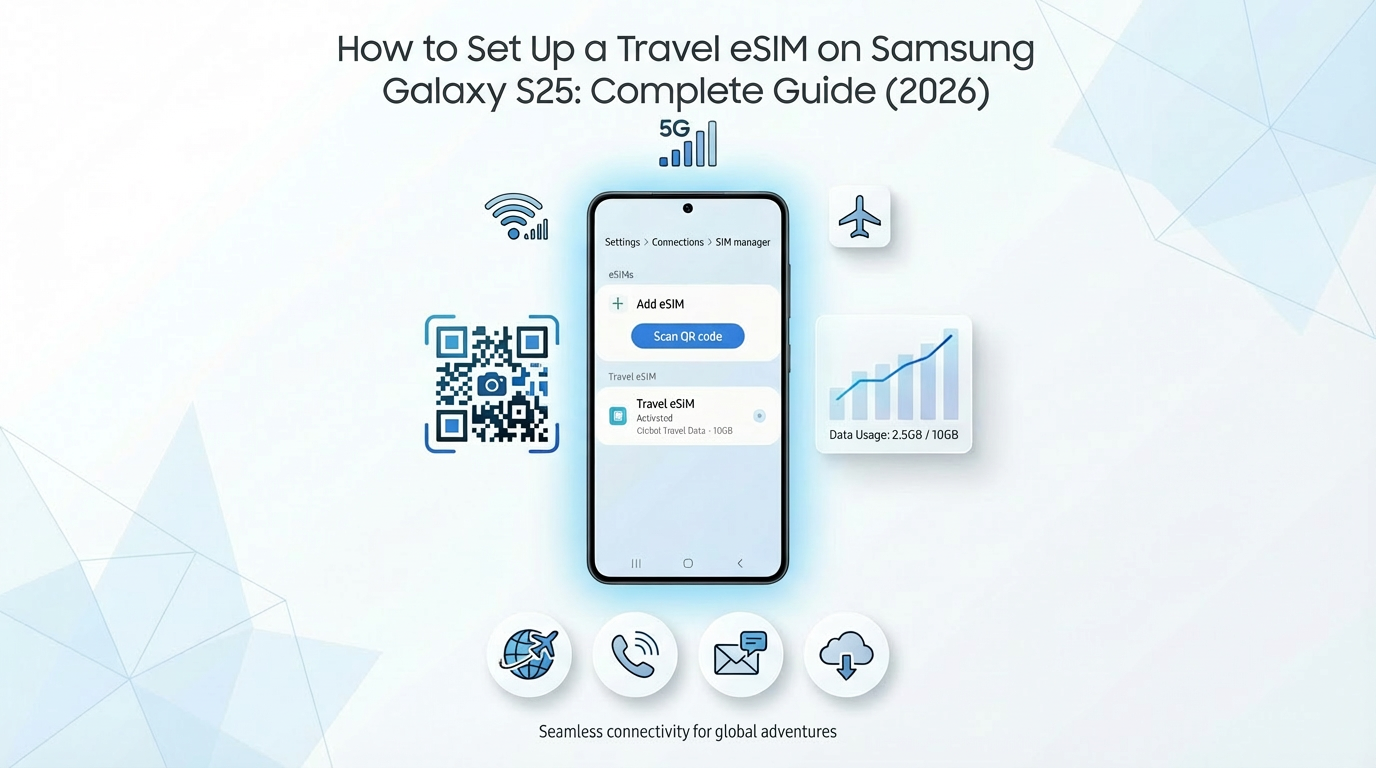
Step-by-step guide to installing a travel eSIM on Samsung Galaxy S25, S25+, and S25 Ultra. Covers QR code setup, dual SIM configuration to keep your home number, and troubleshooting common Android eSIM issues.
Before You Start
Samsung Galaxy S25, S25+, or S25 Ultra — all three support eSIM
One UI 7 / Android 15 or later (Settings → Software update → check)
Phone must be unlocked — carrier-locked phones may block third-party eSIMs
WiFi connection — needed to download the eSIM profile
Your eSIM QR code — received by email after purchasing a travel eSIM plan
The Galaxy S25 supports dual SIM: one physical nano-SIM + one eSIM, or two eSIMs active at the same time. This means you can keep your regular number active while using a travel eSIM for data abroad.
Step 1: Buy Your Travel eSIM (Before Your Trip)
Do this at home while you have WiFi. Don't wait until the airport.
Go to eSIMHop plans and pick your destination
Choose a data plan (need help deciding? see our data usage guide)
Complete payment — you'll receive a QR code by email within minutes
Step 2: Install the eSIM
Method A: QR Code (Recommended)
Open Settings → Connections → SIM manager
Tap Add eSIM
Tap Scan QR code from service provider
Point your camera at the QR code from your email
Tap Add when the plan details appear
Wait for the download to complete (usually 15-30 seconds)
If the QR code is on your Galaxy S25 itself (e.g., in your email app on the same phone):
Screenshot the QR code first
Go to SIM manager → Add eSIM → Scan QR code
Tap Enter activation code instead at the bottom
Enter the SM-DP+ address and activation code from your provider's email
Method B: Manual Entry
Open Settings → Connections → SIM manager → Add eSIM
Tap Enter activation code instead (at the bottom of the QR scan screen)
Enter the SM-DP+ Address (also called Server Address)
Enter the Activation Code
Tap Connect → wait for download
Step 3: Label and Configure Your eSIM
After installation, Samsung will ask you to set up the new SIM:
Give it a name: Tap the default name and change it to something clear — "Japan Travel", "Thailand Data", etc.
Choose an icon: Pick the travel/airplane icon so you can spot it quickly
Step 4: Set Up Dual SIM (Keep Your Home Number)
This is the most important step. You need to tell your phone which SIM to use for what.
Go to Settings → Connections → SIM manager
You'll see both your SIMs listed. Configure:
Function | Set to | Why |
|---|---|---|
Calls | Home SIM | Keep receiving calls on your number |
Messages | Home SIM | Keep receiving SMS/verification codes |
Mobile data | Travel eSIM | Use cheap travel data, avoid roaming |
Tap "Mobile data" → select your travel eSIM
Turn OFF "Data switching" — this prevents Samsung from secretly using your home SIM for data when the eSIM signal is weak, which would trigger expensive roaming charges
Step 5: Activate at Your Destination
Most travel eSIMs start counting validity from your first network connection. Don't enable it until you land.
When you arrive, open Settings → Connections → SIM manager
Tap your travel eSIM
Turn ON the toggle to enable it
Go to Settings → Connections → Mobile networks
Make sure your travel eSIM is selected
Turn ON Data roaming — you need this for your travel eSIM to connect to foreign networks
If it doesn't connect:
Toggle Airplane mode on → wait 10 seconds → off
Still nothing? Go to Settings → Connections → Mobile networks → Network operators → tap Search networks → manually select a local carrier
If none of that works, restart your phone
Full troubleshooting: eSIM Not Working? 10 Fixes
Step 6: Verify Your Connection
Open Chrome and load any webpage
Check Settings → Connections → Data usage to confirm data is flowing through your travel eSIM
Test Google Maps, WhatsApp, or any app you'll need during travel
Managing Your eSIM During Travel
Check Data Usage
Settings → Connections → Data usage → Mobile data usage → select your travel eSIM to see consumption. For remaining balance, check your eSIM provider's dashboard.
Quickly Switch Data Lines
Pull down the notification shade → long-press the SIM card icon (or go to Quick Settings) → switch between SIMs. Useful if you need to briefly use your home SIM.
Top Up
Running low? Buy additional data at eSIMHop — many plans support top-ups without reinstalling.
After Your Trip
Settings → Connections → SIM manager → tap travel eSIM → turn it OFF
Set Mobile data back to your home SIM
Keep the eSIM installed if you might return — delete it only if you're sure you're done
To delete permanently: SIM manager → tap the travel eSIM → Remove eSIM. Once removed, the QR code usually can't be reused.
Galaxy S25 eSIM FAQ
How many eSIMs can the Galaxy S25 store?
The S25 can store multiple eSIM profiles. You can have up to 2 SIMs active at once (any combination of physical + eSIM, or two eSIMs).
The menu path on my S25 looks different — where is SIM manager?
Some carrier variants have slightly different menu paths. Try: Settings → search "SIM" in the search bar at the top → tap SIM manager or SIM card manager.
Will Samsung Pay still work?
Yes. Samsung Pay is tied to your Samsung account, not your SIM. It works regardless of which SIM is active.
Will my WhatsApp and Telegram keep working?
Yes. These apps are linked to your phone number, not your SIM. As long as your travel eSIM provides data, they'll work with your existing number.
My Galaxy S25 is carrier-locked. What do I do?
Contact your carrier to request an unlock. In many countries, carriers must unlock your phone after your contract ends. A locked S25 will show an error when trying to add a third-party eSIM.
Can I use the eSIM as a hotspot?
Yes. Go to Settings → Connections → Mobile Hotspot and Tethering → enable Mobile Hotspot. Make sure your travel eSIM is set as the mobile data line. Hotspot sharing is supported on most eSIMHop plans.
S25 vs S25+ vs S25 Ultra — any eSIM differences?
No. All three models have identical eSIM support. The setup process is the same.
What about the Galaxy S25 Edge?
The Galaxy S25 Edge also supports eSIM with the same setup process described above.
Ready for your next trip? Browse eSIM plans for 170+ countries — plans start from $1.00 with instant QR code delivery.
Download the eSIMHop app for easier management
Buy, install and manage your eSIM plans on the go